
Visualization
The Visualization menu contains four non-editable overlays. An overlay reads the current project and adds a temporary JOSM layer; it never changes the source OSM or configuration files.
| Menu entry | What it shows |
|---|---|
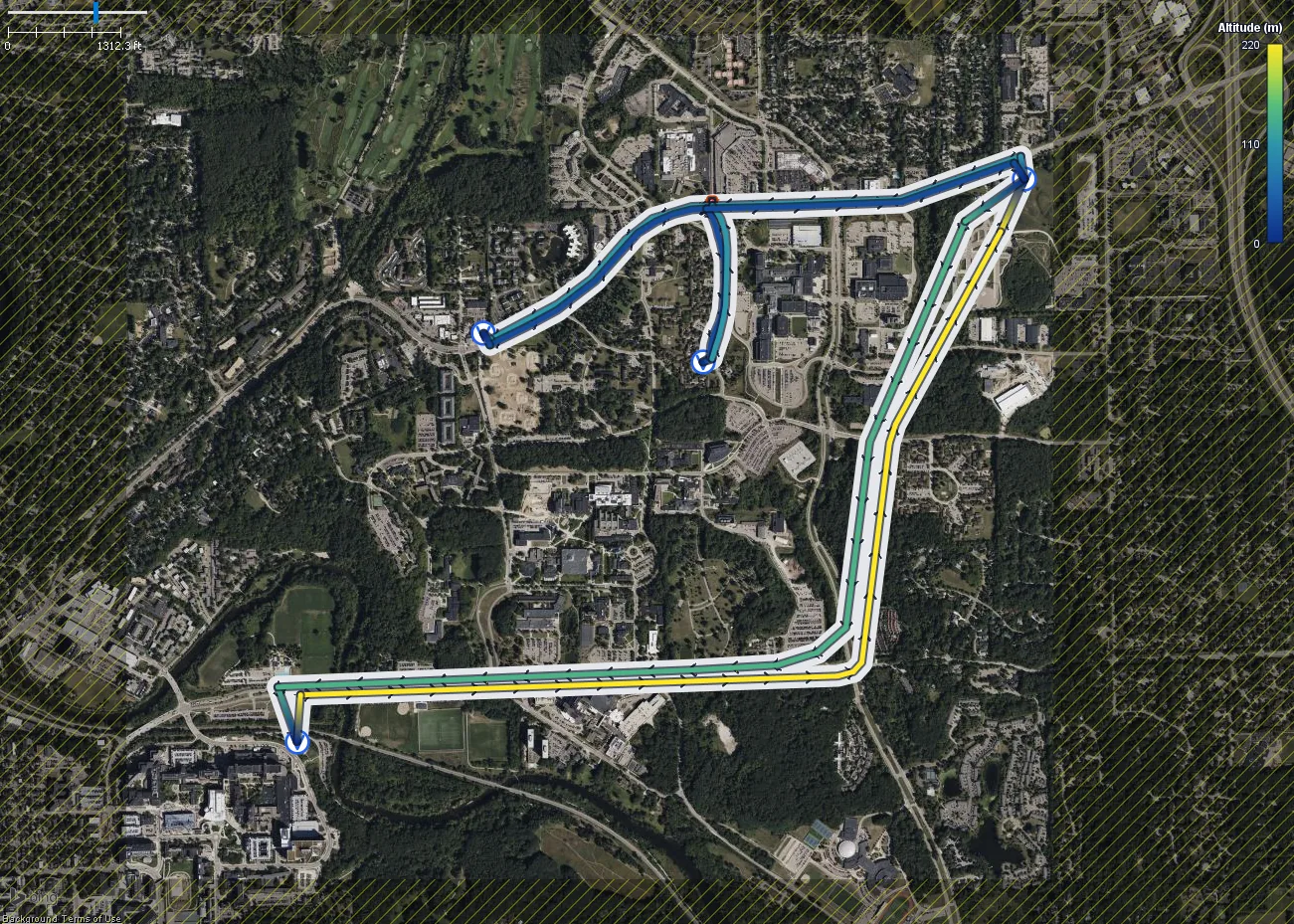
| Altitude Coloring | Corridor altitude interpolated from the corridor nodes, using a continuous color scale. |
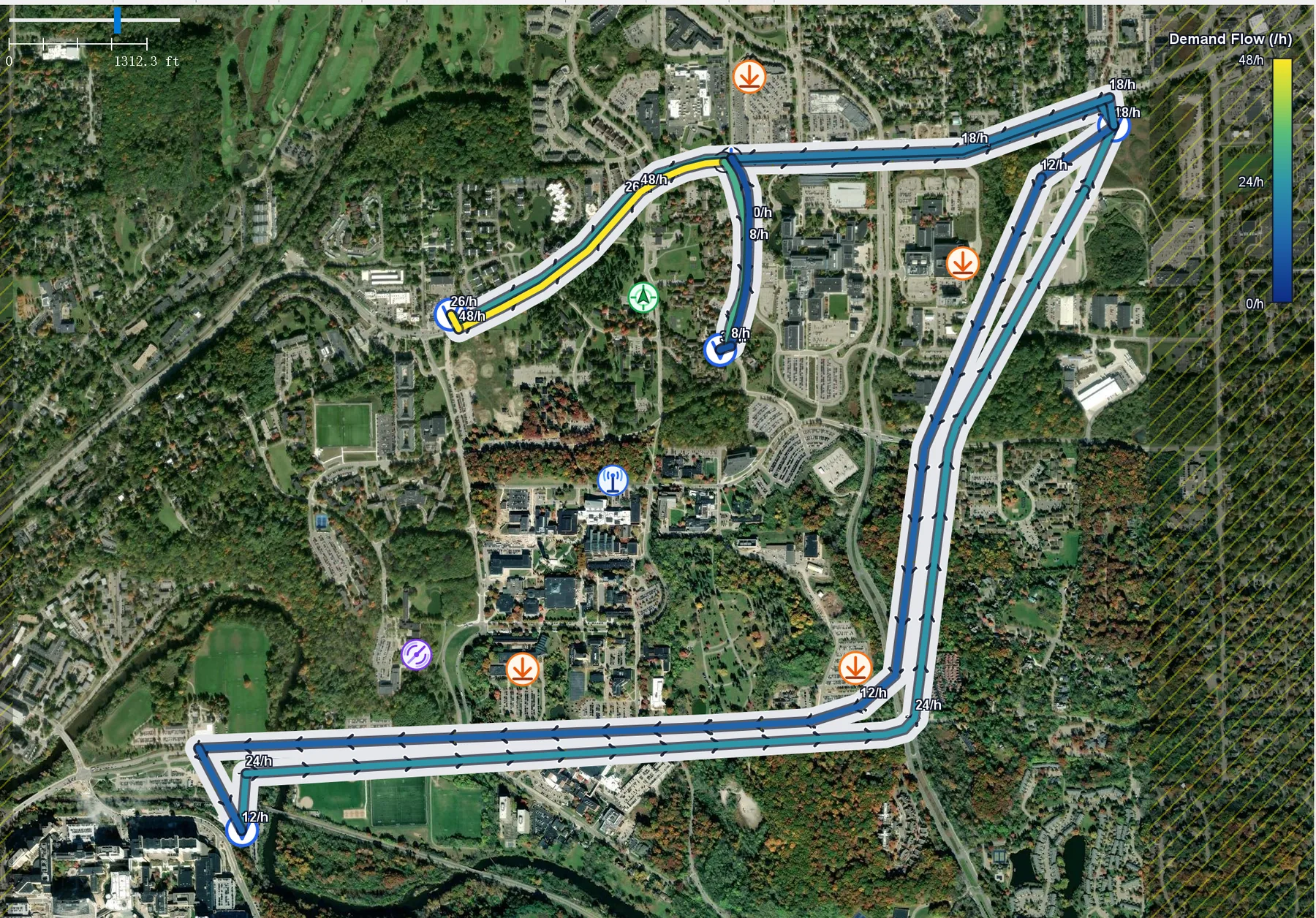
| Demand Flow | The sum of explicit route-flow demand using each corridor. |
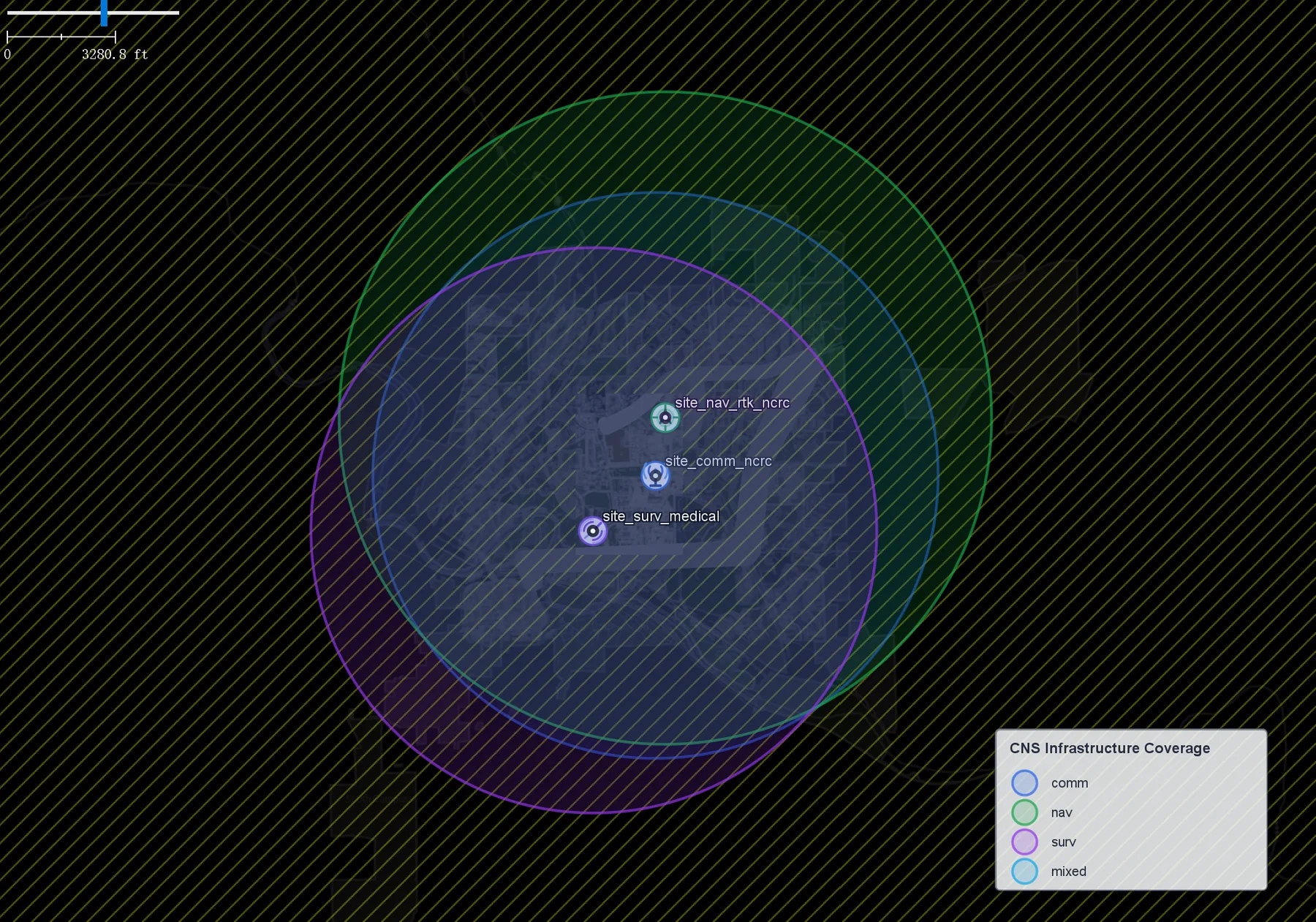
| CNS Infrastructure Coverage | Coverage areas for communication, navigation, and surveillance sites in network/infrastructure.osm. |
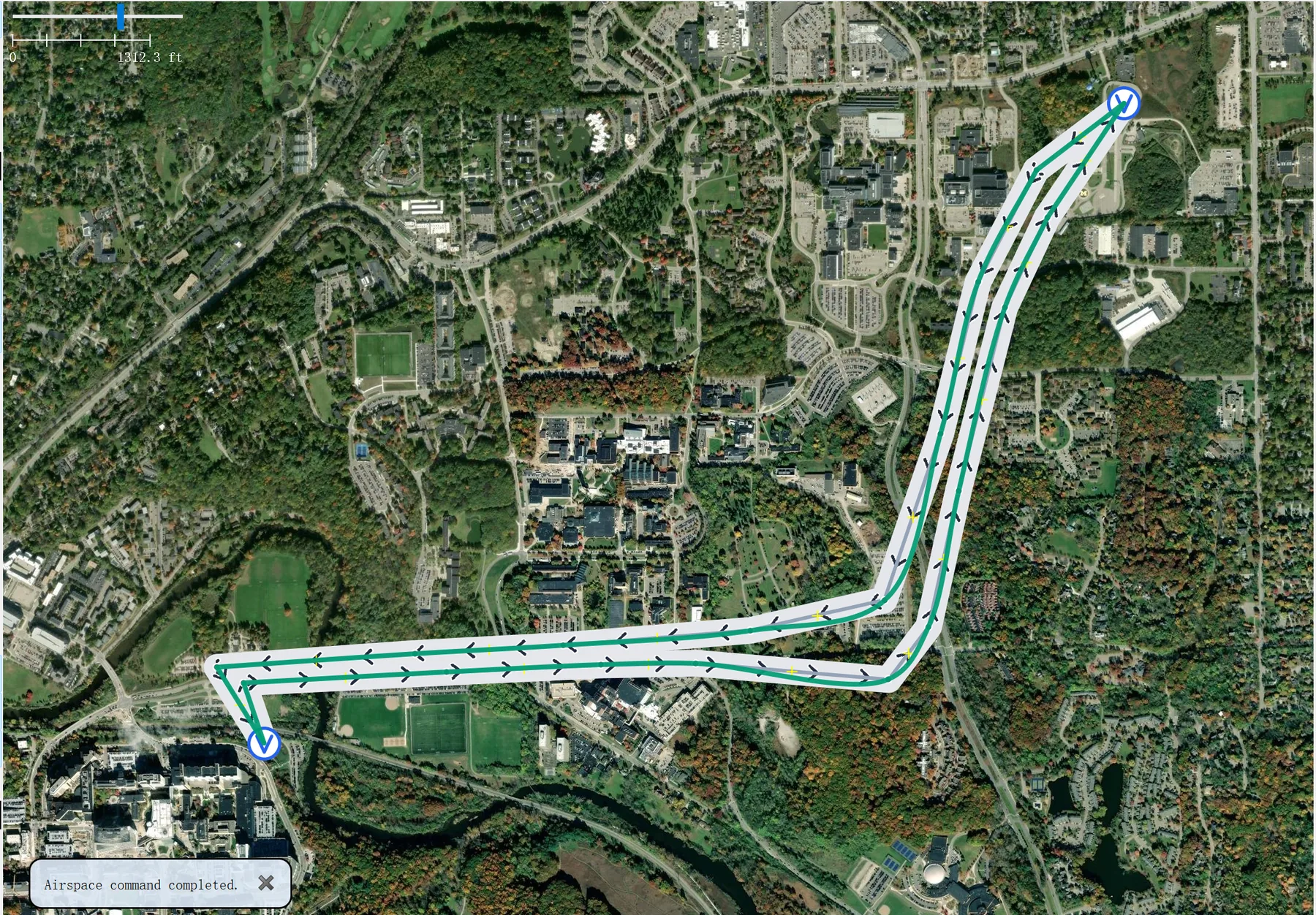
| Smoothing Preview | Geometry generated from the current smoothing configuration. |
Each entry is a checkbox. Select it again, or remove its layer from JOSM’s Layers panel, to turn the overlay off.
Altitude Coloring
Altitude Coloring uses the altitude values on the nodes of each corridor. Deep blue is
low and yellow is high. Use it to locate abrupt vertical changes or missing
vertical continuity.
Demand Flow
Demand Flow reads route flows from config/demand_config.xml, resolves each
flow’s route reference to a relation whose identity is route_id, and adds the
flow to every corridor in that route. If several routes share a corridor, their
route flows are summed on that corridor.
The current overlay does not assign OD flows to corridors. An OD flow has no fixed path until LOFT-Sim resolves it, so LOFT-Edit cannot include it in an exact pre-simulation corridor total.
CNS Infrastructure Coverage
This overlay draws the coverage geometry of sites stored in
network/infrastructure.osm. Open that project layer first. Each site is drawn
as a filled circle of its coverage_radius and a dashed inner circle of its
core_radius; no other model parameter changes the drawing.
Smoothing Preview
Open Configuration > Configure Corridor Smoothing, choose the method and
parameters, and confirm the dialog. The preview is generated from the editable
network plus config/additional.xml. Use Visualization > Smoothing Preview
to hide or regenerate it later.
See Smoothing for the parameter definitions.
Overlay Order and Legends
Only the topmost visible corridor line overlay controls the corridor rendering and legend. Move the overlay you want to inspect above the others in the Layers panel. Background OSM, imagery, source geometry, selection, and validation markers remain independent.