
Create a Project
A LOFT-Edit project is a folder with the network, CNS, demand and configuration files of one scenario. The project launcher creates new projects and opens existing ones in JOSM.
Start the Launcher
Run the launcher from the LOFT-Edit checkout: launchers\loft-edit.cmd
on Windows, open launchers/LOFT-Edit.app on macOS,
launchers/loft-edit.sh on Linux, or loft-edit-launch from any terminal
where the editor’s Python environment is active. See
Installation.
Create a New Project
- Click New Project and enter a project name. The project is created
under
workspace/in the LOFT-Edit checkout. - In Project Map Mode, choose how the project is georeferenced (see the table below).
- Click Open Project to open the new project in JOSM.
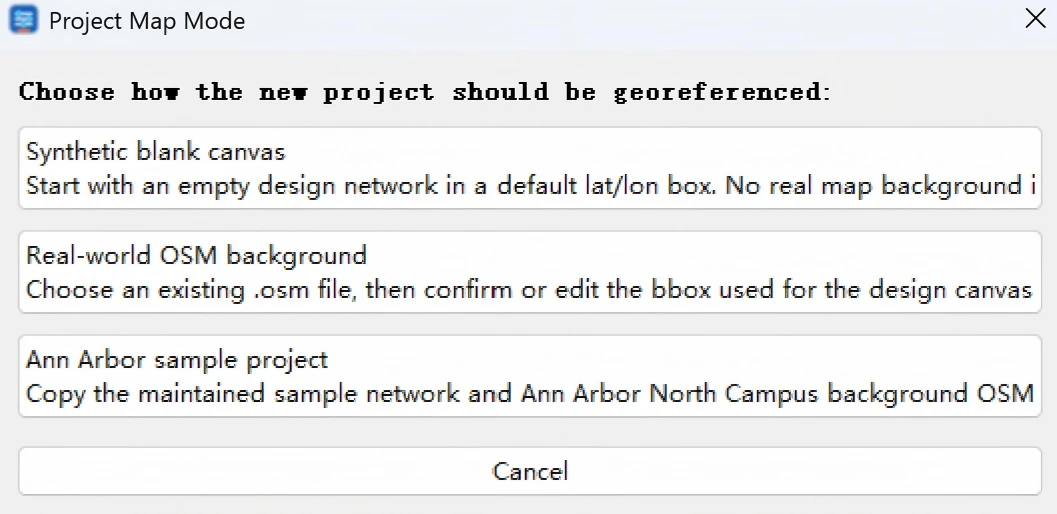
| Choice | What the project starts with |
|---|---|
| Synthetic blank canvas | An empty design network in a default lat/lon box. No real map background is copied. |
| Real-world OSM background | A background .osm file you choose, clipped to the project bounds (see Use a Real-World Base Map). |
| Ann Arbor sample project | The sample’s network, CNS layer and Ann Arbor North Campus base map, with empty demand and default configuration (see Example Projects). |
Use a Real-World Base Map
Prepare a study-area base map
A real-world project starts from an OpenStreetMap extract (.osm file) of the
study area. It is the map context shown under the network in JOSM and in the
browser viewer (buildings, roads and other features); the simulation never
reads it. To get one:
- For a small area, use openstreetmap.org:
zoom to the area, click Export, and save the
.osmfile. The site refuses areas that contain too many objects. - For a larger area, download the data in JOSM (File > Download data) and save the layer with File > Save As, or download it from an Overpass API service.
The Real-world Project Bounds step below clips the copy used by the project to the project bounds.
Open it in a new project
- Click New Project, enter a project name, and in Project Map Mode select Real-world OSM background.
- In the file picker, select a background
.osmfile. - Click Open.
- In Real-world Project Bounds, confirm or edit the bounding box
(
south,west,north,east). The design canvas and the copied background OSM are clipped to this box. - Click Open Project.
Open an Existing Project
Click Open Existing Project and choose the project folder, not a file; the
folder must contain scenario.json and network/airspace_network.osm. Then
click Open Project. See
Project Structure
for the files a project holds.