
Presets
LOFT-Edit presets turn selected JOSM geometry into simulator-recognized airspace objects. They expose the current schema, write the required classification fields, and let the plugin generate stable semantic IDs.
Open the Preset Palette
Select a node, way, or route relation and open Presets > LOFT-Edit Objects. The palette is divided into three groups:
| Group | Presets |
|---|---|
| Airspace | Contingency Landing Site, Controlled Node, Corridor, Diverging Point, Vertiport, Vertiport Terminal |
| Infrastructure | Communication Site, Navigation Site, Surveillance Site |
| Route | Route |
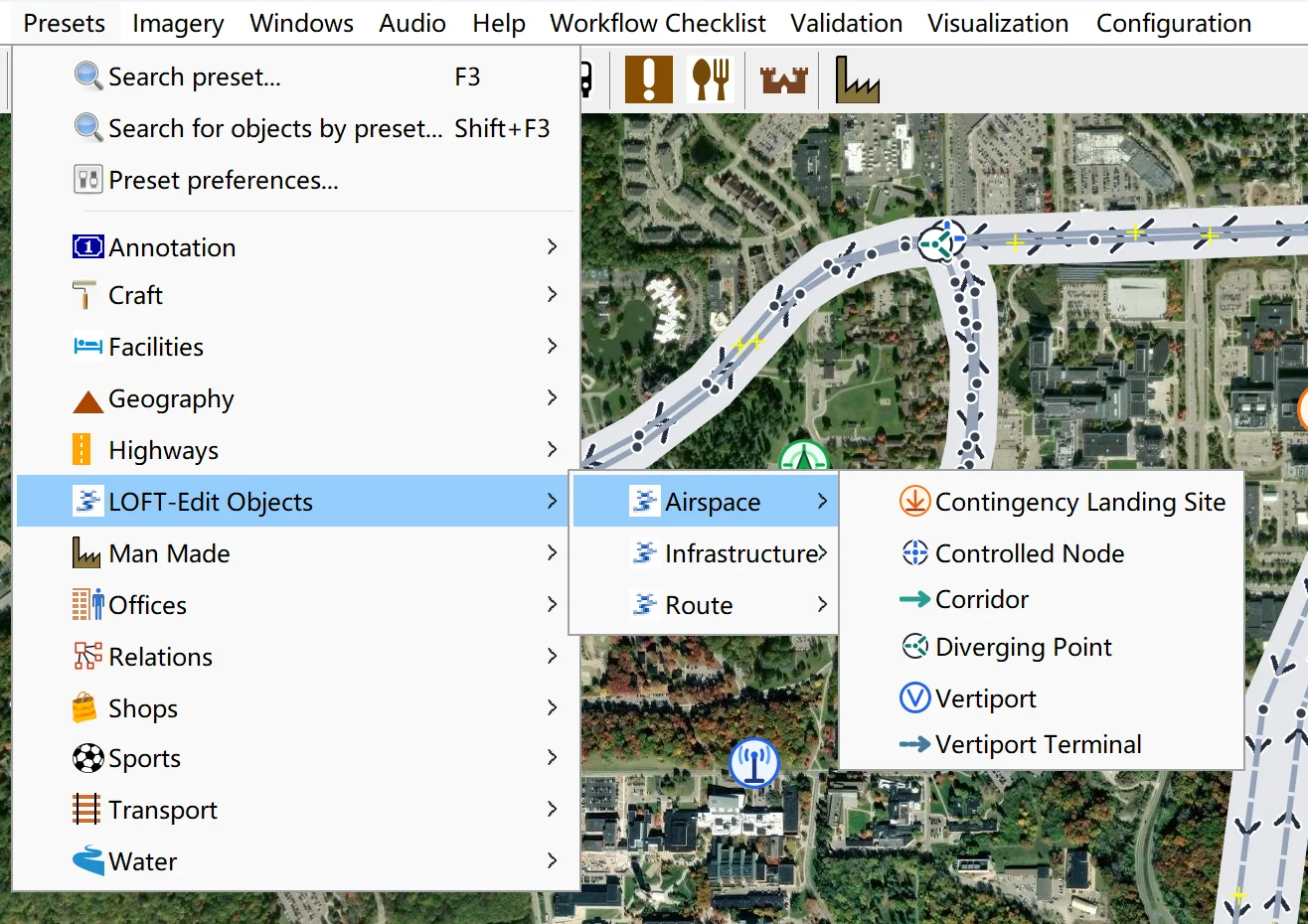
Choosing a preset opens its form. Fill the required fields, optionally enter
values that should be stored explicitly, and click Apply Preset. Optional
fields labelled [unset = value] show the simulator value that applies when
the field is left blank.
Use the Map Shortcut
After drawing or selecting geometry, right-click the map and open Create from LOFT Preset. The submenu offers the presets that match the selection:
| Selection | Available objects |
|---|---|
| Way | Corridor, Vertiport Terminal |
| Node | Vertiport, Controlled Node, Diverging Point |
| Isolated node | Contingency Landing Site and the three CNS site types, in addition to the applicable node choices |
When the selected node belongs to a way, the items that need an isolated node (Contingency Landing Site and the three CNS sites) are shown greyed out.
This shortcut opens the same JOSM preset form as the top menu; it does not use a separate object definition.
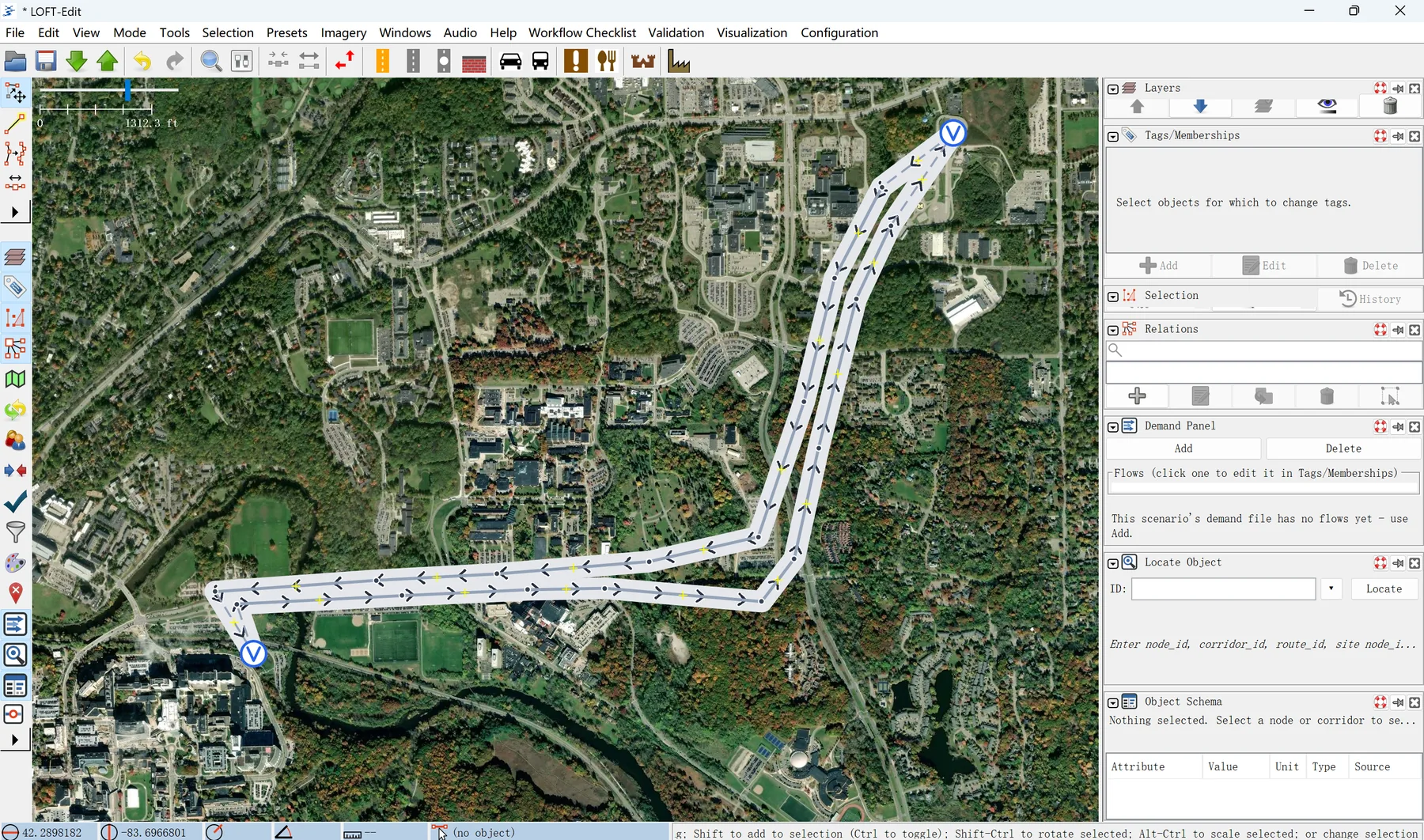
Create Corridors and Vertiports
- Draw the raw nodes and ways on
airspace_network.osm. - Select a raw way, right-click the map, and choose Create from LOFT Preset > Corridor.
- Fill required fields, accept the appropriate defaults, and click Apply Preset.
- Select a terminal node, right-click, and choose Create from LOFT Preset > Vertiport.
- Save the layer.
Use Vertiport Terminal instead of Corridor when a separate approach/departure segment represents the terminal connection.
Object Presets
| Object | How to create it |
|---|---|
| Vertiport | Select a terminal node and apply Vertiport. |
| Contingency landing site | Select an isolated emergency landing node and apply Contingency Landing Site. The dialog’s required fields are node_id, altitude, vehicle_access (default all), and max_landing_rate_per_hour (default 10); its optional fields are emergency_only, smoothing_anchor, and smoothing_weight. Do not use it as an ordinary OD origin. |
| Corridor | Select a raw way, right-click, and choose Create from LOFT Preset > Corridor. |
| Vertiport terminal | Split the approach/departure segment when necessary, select it, and apply Vertiport Terminal. |
| Intersection | Select the crossing or multi-branch node and apply Controlled Node. |
| Diverging point | Select the split node and apply Diverging Point. |
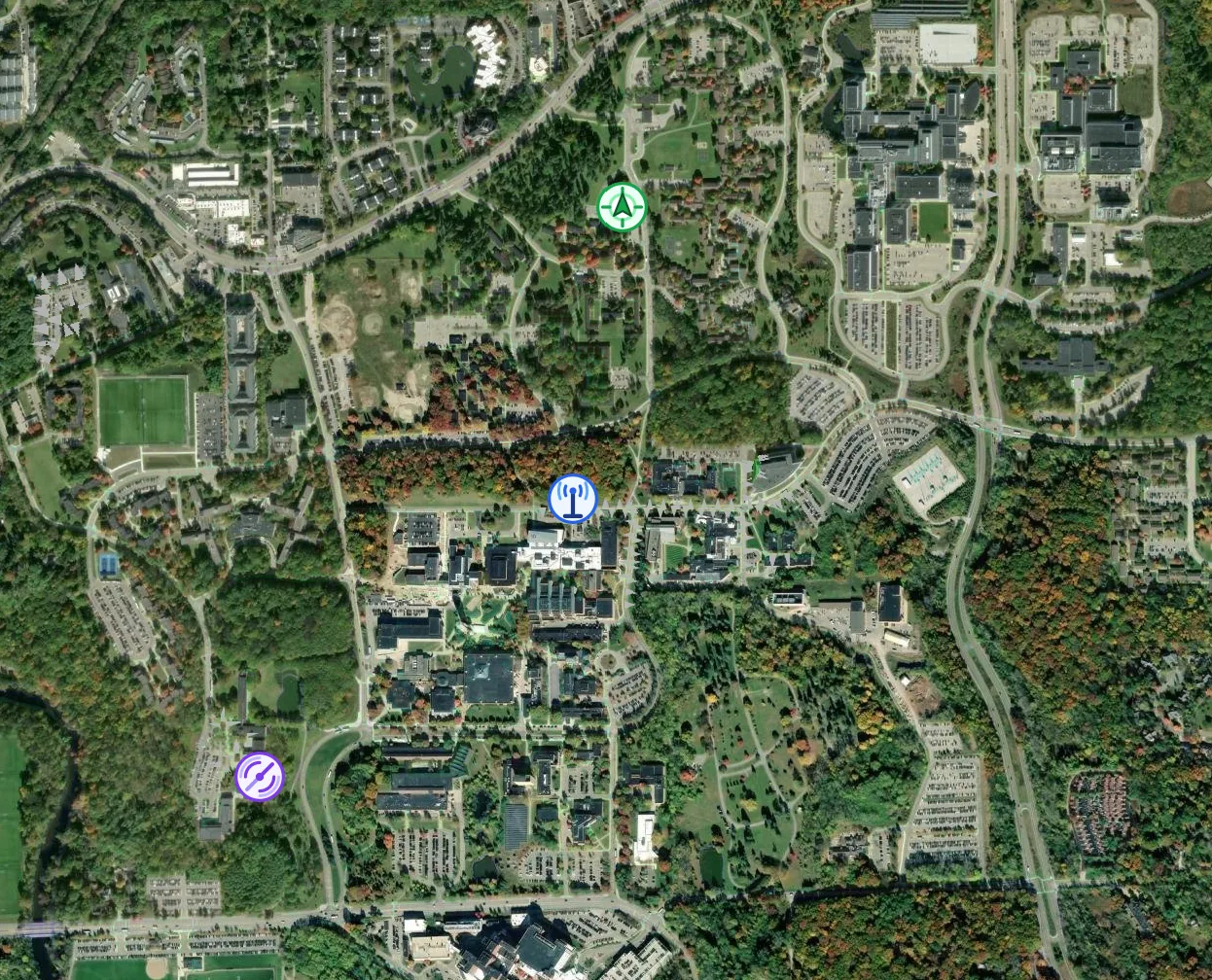
| CNS site | Activate infrastructure.osm, place an isolated node, and apply Communication Site, Navigation Site, or Surveillance Site. |
There is no Waypoint preset. Intermediate nodes of a corridor are its waypoints. LOFT-Edit synchronizes semantic IDs and types after an object is created; use the Object Schema panel to inspect or change its complete attribute set.
What the Preset Writes
Creation writes a minimal, valid object rather than copying every simulator
default into the OSM file. A corridor receives way_type and a generated
corridor_id; a network node receives its node_type, generated node_id,
and any fields the schema marks required. Infrastructure sites also receive
their model selector and required coverage radius.
Values you enter are written even when they equal a simulator default. Fields left blank remain absent from the file and are still visible in the Object Schema Panel.
Layer Requirements
- Apply airspace-object presets on
airspace_network.osm. - Apply CNS site presets on
infrastructure.osm. - CNS sites and contingency landing sites are point assets and do not need to belong to a corridor way.
- The green check mark in JOSM’s Layers panel identifies the active editable layer; highlighting a layer row does not necessarily activate it.
Presets Are Not Demand
Demand flows are records in config/demand_config.xml, not OSM map objects.
Create them from the Demand Panel
rather than the preset palette.