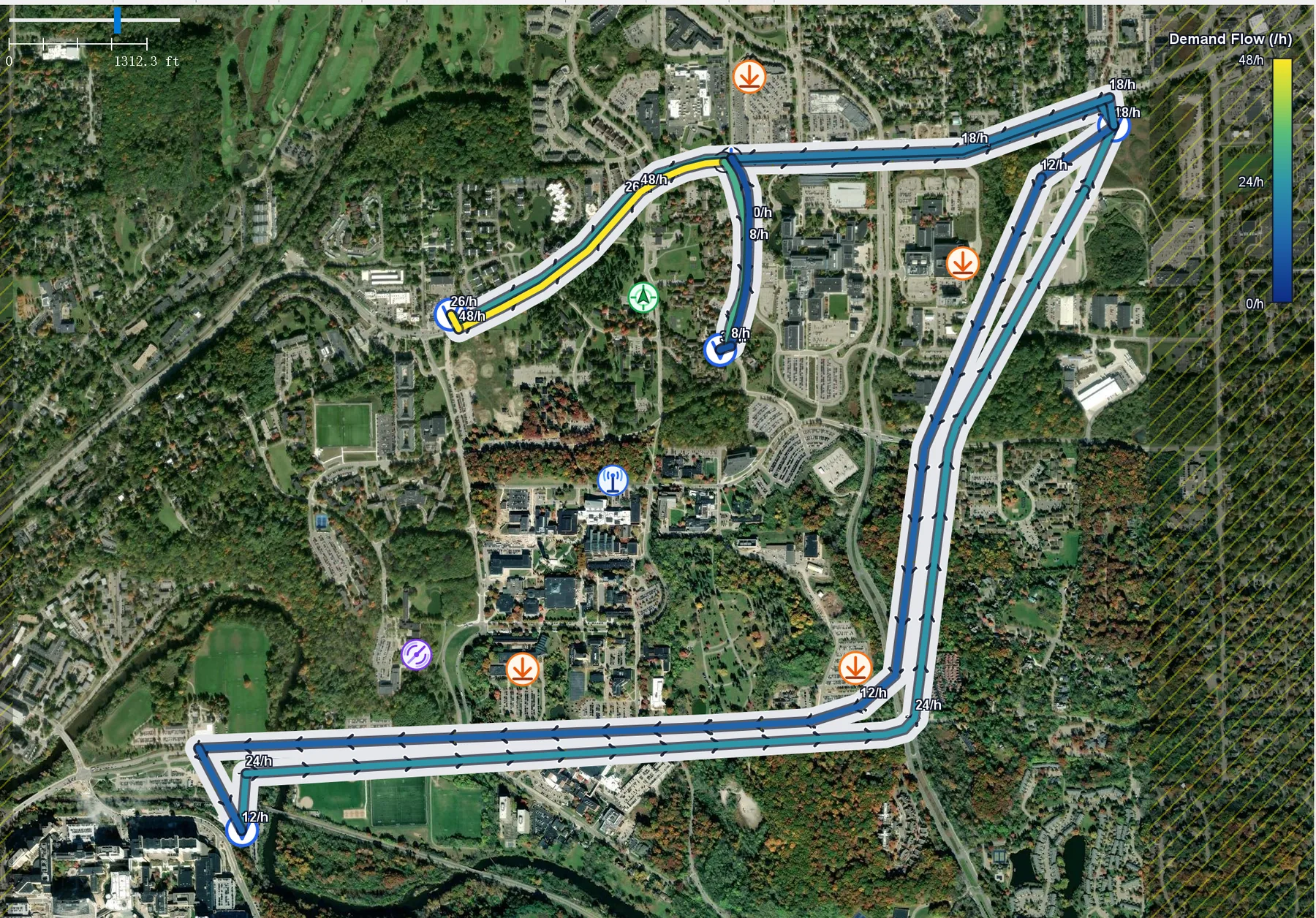
Create Routes
A route is an OSM relation that references one or more corridor ways in travel
order. The relation uses type=air_route and a unique route_id.
Create a Route from the Map
- Select the corridor ways in travel order. Click the first way, then Ctrl+click each following way. The members of the relation are the selection, in that order.
- Right-click the selected corridor geometry on the map. Choose Create Route for one corridor or Create Route from Selection for multiple corridors.
- Keep the generated Route ID or enter a unique readable
route_id. - Click OK.
- Confirm that the new relation appears in JOSM’s Relations panel, and that its members are the corridors you selected, in order.
The route preset under Presets > LOFT-Edit Objects > Route > Route is an alternative, but the right-click command is the shorter workflow.
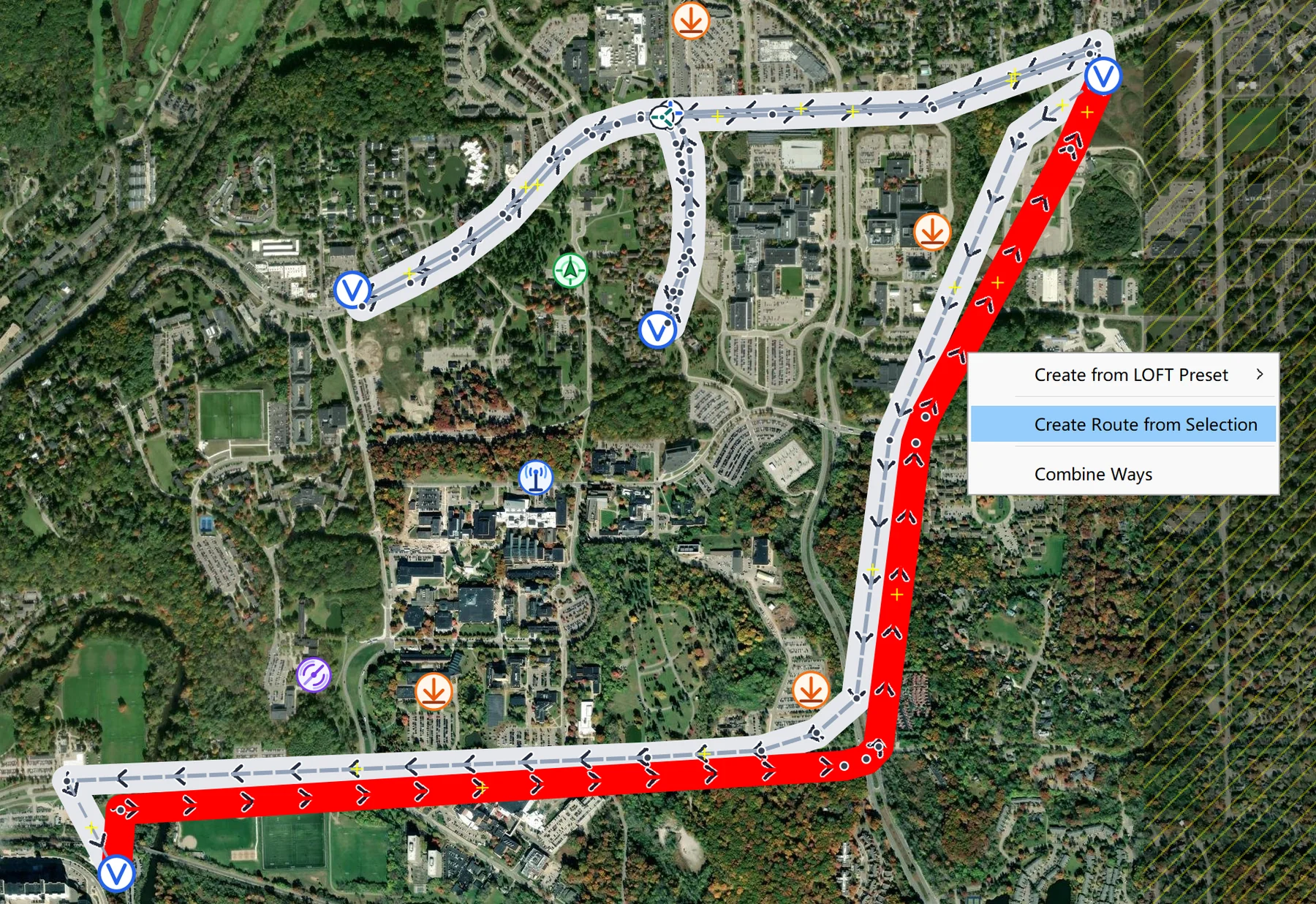
Select the completed relation in the Relations panel to preview the full route on the map. The highlighted corridor sequence makes direction, connectivity, and member order easier to review before demand is assigned.
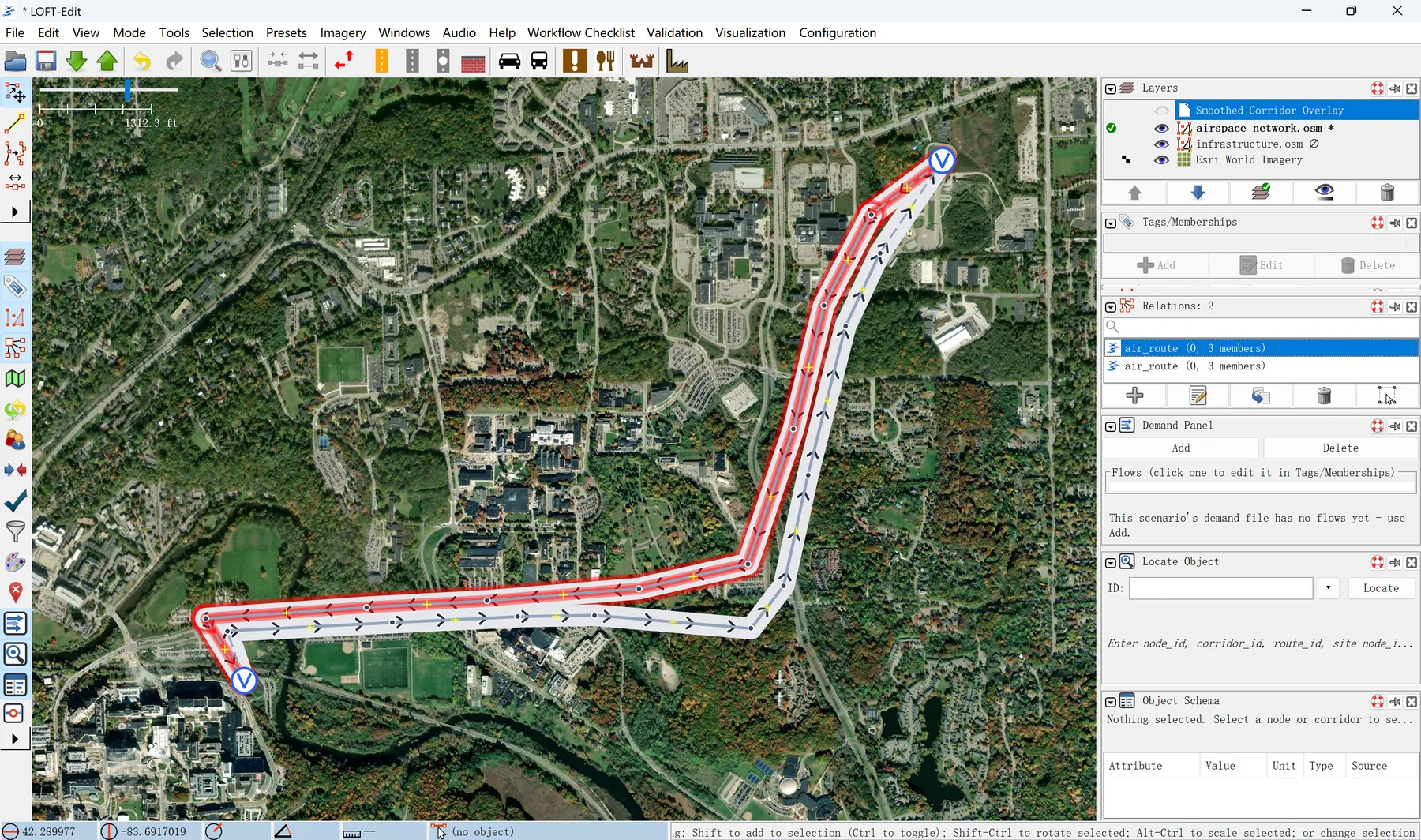
Route Context Menu
The right-click command appears only when the current selection contains corridor ways.
| Selection | Command | Result |
|---|---|---|
| One corridor way | Create Route | Creates one type=air_route relation from that corridor. |
| Multiple corridor ways | Create Route from Selection | Creates one type=air_route relation using the selected corridors in travel order. |
If the command does not appear, check that the selected way has a corridor ID and is an airspace corridor rather than a background OSM road, building, or other map feature.
The same right-click menu also provides Split at Selected Node and Combine Ways when the selection supports them; see Drawing.
Direction and Continuity
Each corridor’s node order defines its direction. The route relation’s member order defines the complete path. Consecutive members must connect head-to-tail; reverse or redraw a corridor when its direction is wrong.
Route Identity
The relation defines its identity with route_id. A demand flow references that
identity with the attribute route, for example:
<flow flow_id="f0" route="r0" arrival_rate_per_hour="60" />
Do not write route_id on the flow. That retired demand spelling is rejected by
the current simulator.
Shared Corridors
Multiple routes may use the same corridor. Visualization > Demand Flow sums all explicit route flows on every shared corridor, and validation compares that combined load with the corridor’s assumed capacity.