
Drawing
Use this page to draw and edit raw network geometry in JOSM. It covers geometry only; object classification and attributes are documented on their own feature pages.
Draw the Raw Network
- Select the editable
airspace_network.osmlayer. - Choose JOSM’s Draw nodes tool on the left toolbar.
- Click each point of the intended corridor path.
- Double-click or press
Escto finish the way. - Save the layer before running validation or export.
This first pass creates raw JOSM nodes and ways. Keep the geometry simple and draw each way in its intended direction: a way’s node order is the corridor’s direction. Draw from origin toward destination, or reverse the way in JOSM before creating routes. The next step classifies the ways and nodes as LOFT-Edit airspace objects with Presets.
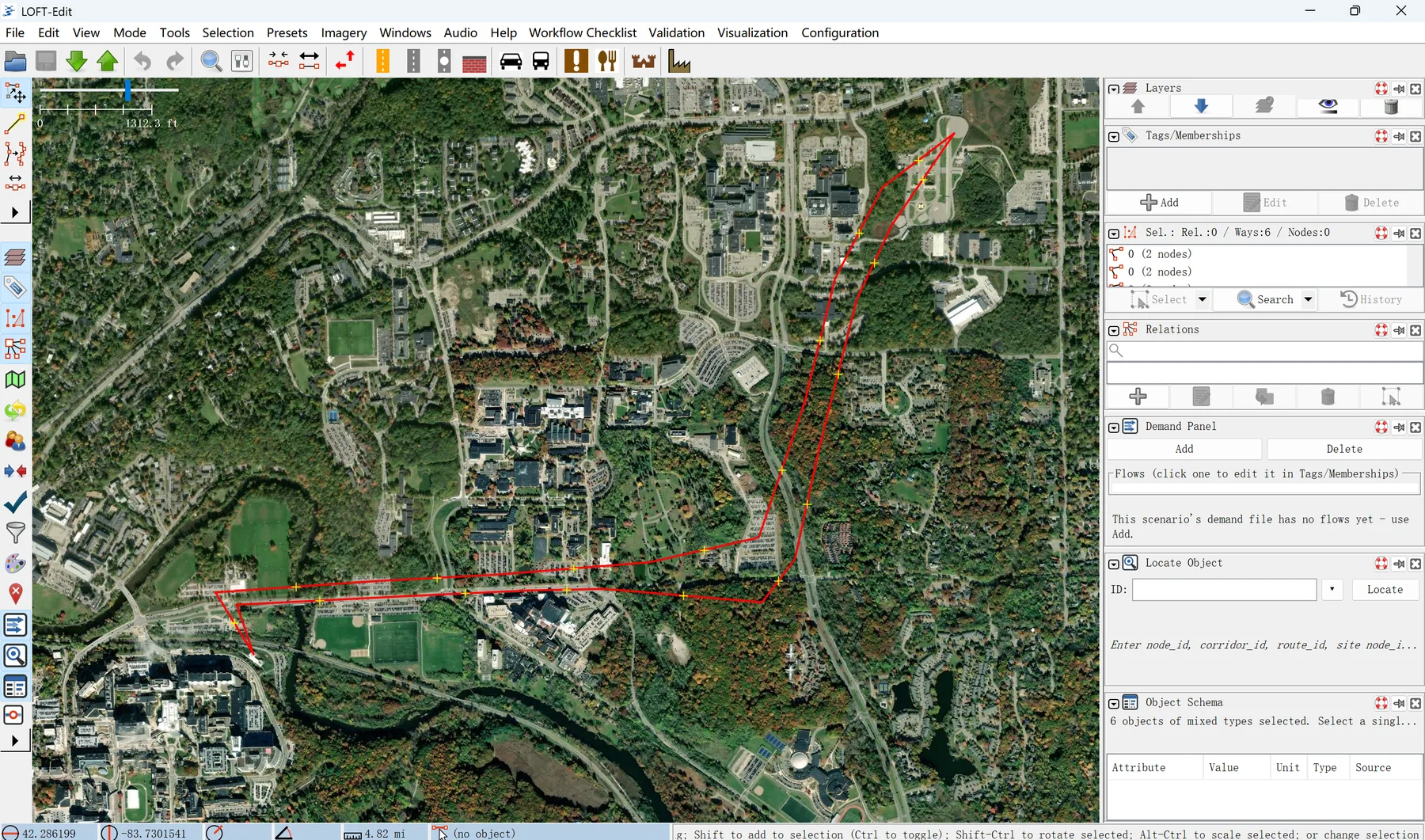
Split and Combine Geometry
The map’s right-click menu exposes geometry operations that match the current selection.
- Select an interior node of a way, right-click, and choose Split at Selected Node to break the way into separate segments.
- Select two or more adjacent ways, right-click, and choose Combine Ways to join them into one continuous way.
| Selection | Geometry command |
|---|---|
| Interior node on a way | Split at Selected Node |
| Two or more ways | Combine Ways |
Use Split at Selected Node when a single drawn way needs to become separate segments, for example when only part of the line should be a terminal link or when a branch node needs independent corridor IDs. Use Combine Ways when adjacent way segments should become one continuous way again. Route creation is covered on the Create Routes page.
Important Rules
- Draw airspace network geometry on
airspace_network.osmand infrastructure points oninfrastructure.osm. Keep the background map on a separate layer. - Apply semantic tags through presets. Presets write only the required attributes; use the Object Schema Panel (Windows > Object Schema) to see and edit the rest. Tags/Memberships still works for tags that already exist.
- Use the typed identifiers
node_id,corridor_idandroute_id. - Use the Auto-Split Corridors sidebar action when a way passes through a
shared, intersection, diverging or vertiport node. Use Split at Selected
Node when only part of a way needs another
way_type. - The green check mark in the Layers panel marks the active editable layer.
- A selected layer row is not necessarily the active layer.
- Yellow download-boundary hatching is JOSM context, not editable network geometry.