
Smoothing
Smoothing turns the drawn waypoint geometry into operational corridor geometry. The source network remains editable as OSM ways and nodes; smoothing settings control how the preview and exported simulator geometry are generated.
Configure and Preview Smoothing
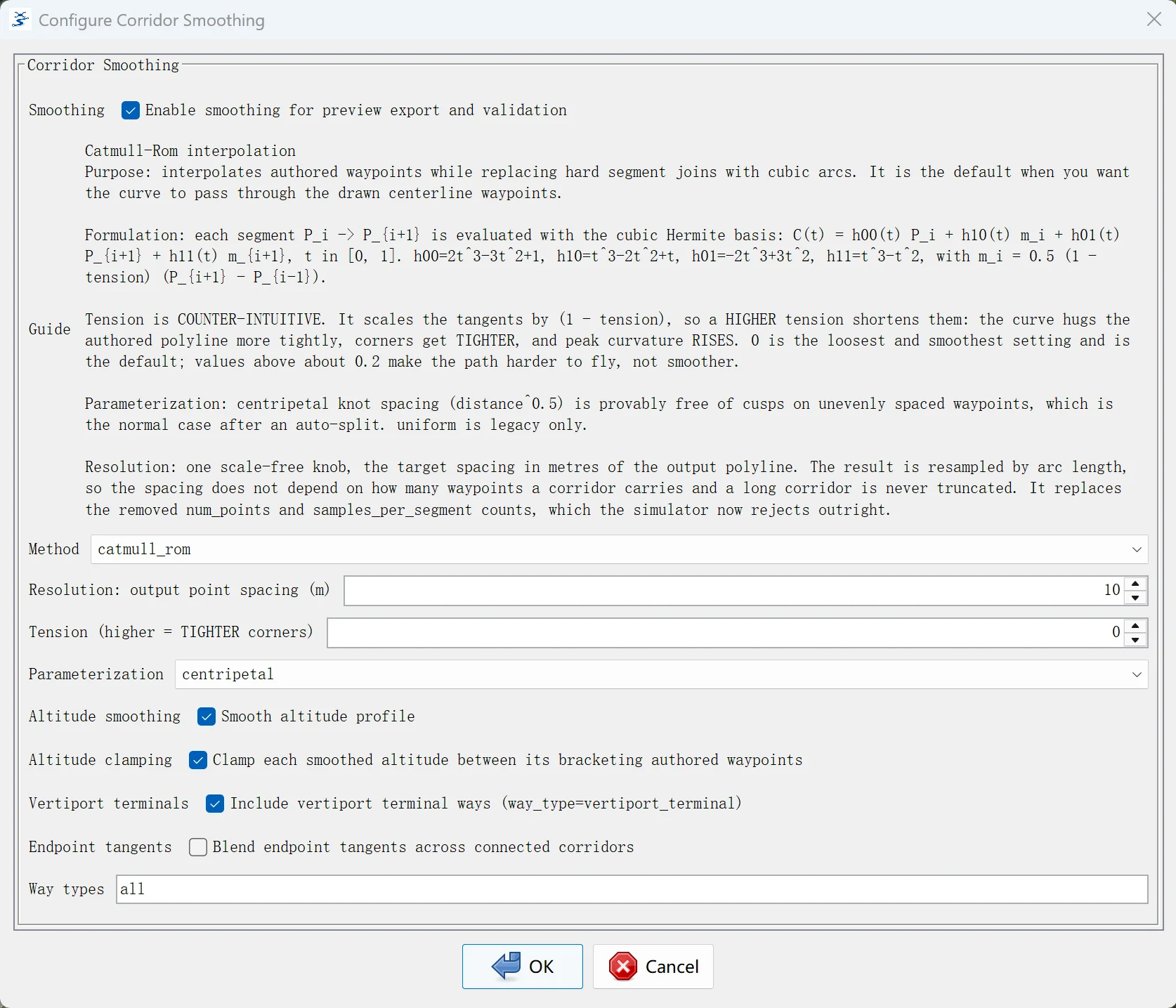
- Open Configuration > Configure Corridor Smoothing.
- Select the smoothing method.
- Enter the smoothing parameters (see Global Settings).
- Click OK. LOFT-Edit writes
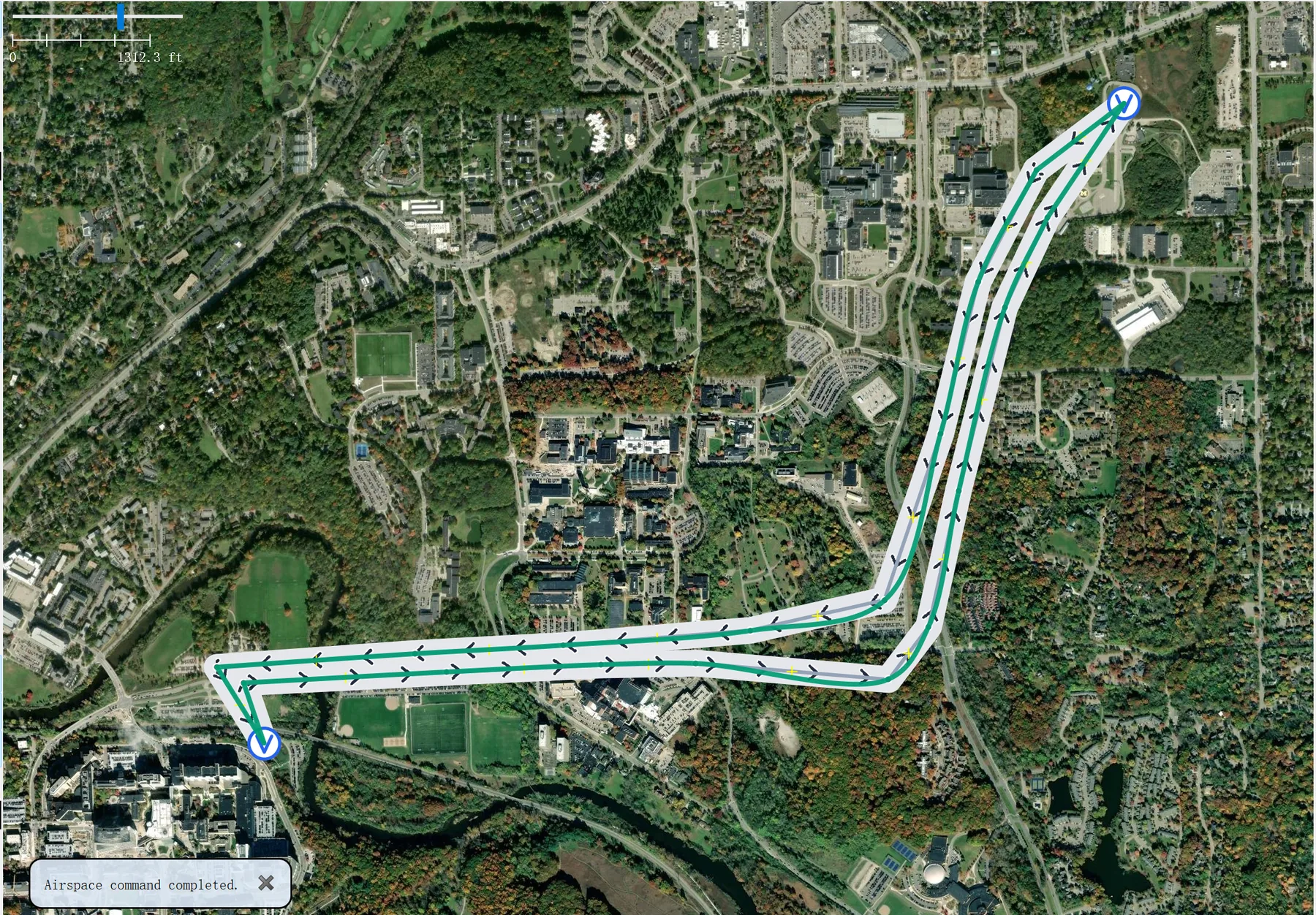
config/additional.xmland opens the smoothing preview (the Smoothed Corridor Overlay layer); with Enable smoothing unticked it closes the preview instead. - Use Visualization > Smoothing Preview to close the preview or bring it back.
- Check that the preview layer appears above the editable network layer. Keep both layers visible to compare the smoothed path with its source waypoints before exporting the scenario.
File Locations
| Location | Meaning |
|---|---|
config/additional.xml |
Stores the global <network_smoothing .../> configuration. |
| Corridor or terminal-link nodes | Store optional smoothing_weight and smoothing_anchor tags. |
| Smoothing preview layer | Temporary visual output used to inspect the resulting geometry. |
Global Settings
The global smoothing block is written in additional.xml as
<network_smoothing .../>.
| Field | Meaning |
|---|---|
enabled |
Turns smoothing on or off for downstream geometry generation. |
method |
Smoothing method: catmull_rom, bspline, nurbs, or chaikin. |
resolution |
Approximate output point spacing in metres. Smaller values create denser preview geometry. |
chaikin_iterations |
Number of corner-cutting iterations for Chaikin-style smoothing. |
tension |
Hermite tangent scale, used by catmull_rom only; higher tension gives tighter corners. The dialog shows this row only when catmull_rom is selected. |
parameterization |
Spline parameterization, commonly centripetal. |
smooth_z |
Whether altitude is smoothed with horizontal geometry. |
clamp_smoothed_altitude |
Keeps smoothed altitude within expected source altitude bounds. |
preserve_vertiport_interfaces |
Keeps vertiport terminal-link geometry unsmoothed (true by default). The dialog shows this setting inverted, as the checkbox Include vertiport terminal ways (way_type=vertiport_terminal). |
blend_endpoint_tangents |
catmull_rom only: takes a corridor’s end tangent from its single upstream or downstream neighbour, so corridors that meet at a shared node join without a kink. Off by default; the dialog shows it as Blend endpoint tangents across connected corridors. |
way_types |
Which structural way classes are smoothed, such as corridors, terminal links, or all supported ways. |
NURBS Node Tags
Weighted smoothing uses node-level tags to express which waypoints should matter more.
| Tag | Meaning |
|---|---|
smoothing_weight |
Positive numeric weight. The default is 1.0; larger values pull the curve closer to that node. |
smoothing_anchor |
true or false. When true, the smoothed curve is expected to pass through that node. |
If a node does not carry these tags, the default behavior is equivalent to
smoothing_weight=1.0 and smoothing_anchor=false.
Preview Layer
The preview layer is a visualization/cache output, not the source network. Use it to inspect:
| Check | What to look for |
|---|---|
| Turn radius | Whether sharp bends became operationally acceptable. |
| Route/corridor length | Whether smoothing changed path length too much. |
| Visual continuity | Whether the curve is continuous through intersections and diverging points within the same smoothed way. |
| Corridor intent | Whether the smoothed shape still follows the intended corridor. |
Terminal Links and Cross-Corridor Joins
Smoothing can include or preserve vertiport terminal-link geometry depending on the configuration. Preserve terminal links when the drawn approach/departure shape is semantically important. Include them when a continuous smooth operational path is more important than matching the hand-drawn segment exactly.
Smoothing is generated per corridor, for the selected structural way classes,
and each corridor’s end points stay on its drawn waypoints. By default two
corridors that meet at an angle therefore show a kink at the shared node. With
blend_endpoint_tangents on (catmull_rom only), a corridor takes its end
tangent from its single upstream or downstream neighbour, so the curve stays
smooth across the join; a node where several corridors meet keeps the kink.
Otherwise draw that movement as one continuous corridor where the design allows
it, or tune the waypoints and anchors near the join.