
Validation
Validation checks whether the current project can be interpreted by LOFT-Edit and LOFT-Sim. Run it before export and again after large geometry, route, demand, or configuration changes.
Supported findings include a one-click automatic repair. Select the finding and press JOSM’s Fix button; LOFT-Edit applies the suggested change as a normal, undoable JOSM edit. Findings that require design judgement remain manual.
Run Validation
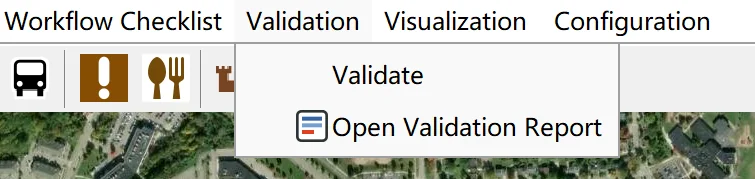
- Open Validation > Validate from the top menu, or click Validate in
JOSM’s
Validation Resultspanel. Both entry points run the same LOFT-only hard checks on the whole project, whichever layer is active; they do not run JOSM’s generic OSM tag checks. JOSM’s own Validation action (Shift+Vby default) is not rewired and still runs JOSM’s generic OSM validator (see Rules Only the JOSM Validator Checks). - Wait for the run to finish.
- Read the findings in JOSM’s
Validation Resultswindow. Click a finding to select the object it is about, and press the window’s Fix button to apply the validator-suggested fix (see Fix Findings). - Press Open Report in the
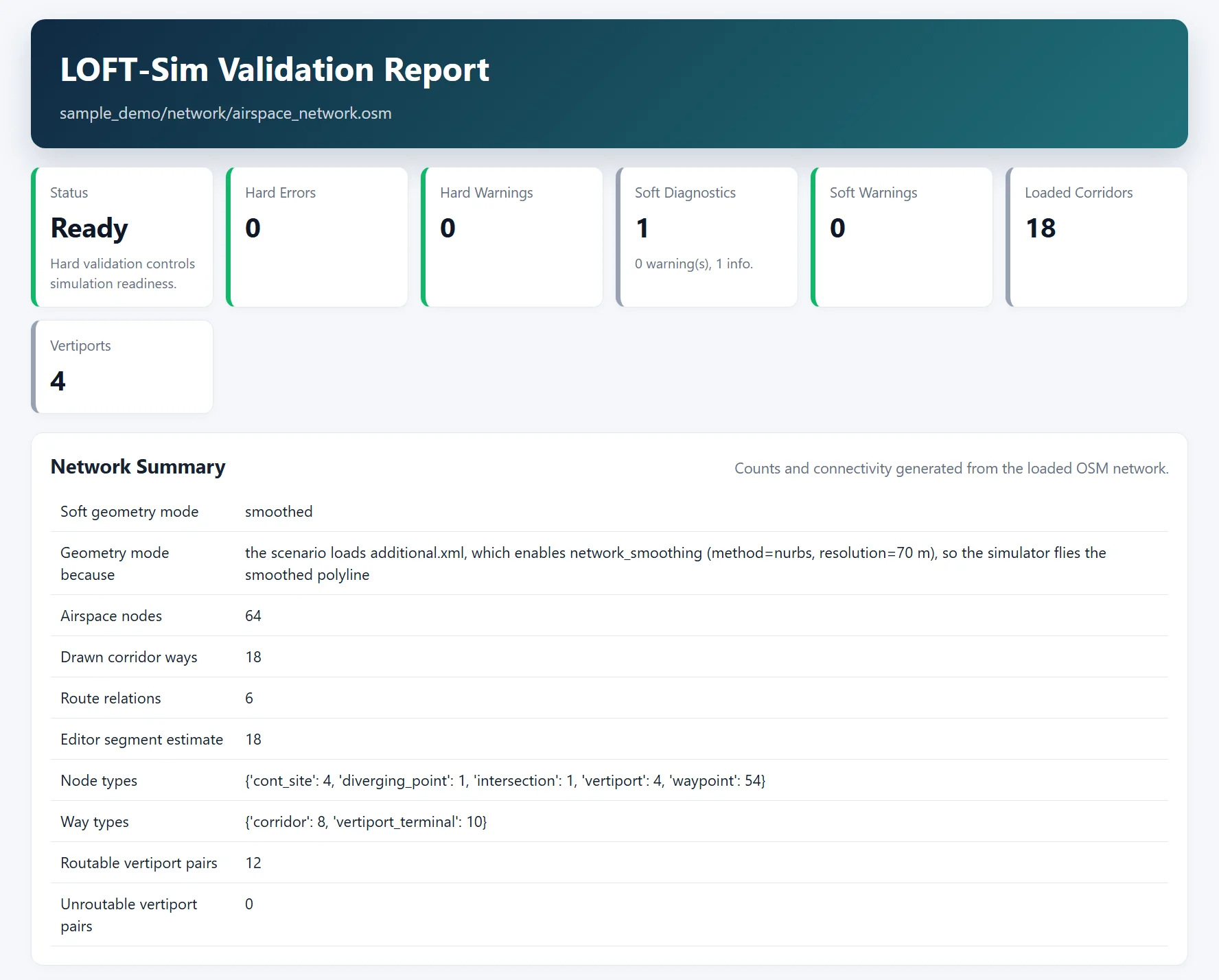
Validation Resultswindow’s button row - besideSelect,FixandManage Ignore- for the full HTML table. The same report opens from Validation > Open Validation Report.
The LOFT-V-S* diagnostics stay out of the window. One informational row says
how many of them the run produced and that they are in the report. It is a pointer
rather than a finding: no object, no fix, and never an error or a warning. Every run
records which corridor geometry the soft checks used (LOFT-V-S16), so the row is
normally present. Its count covers every LOFT-V-S* row, so it can be higher than
the report’s Soft Diagnostics card, which leaves out the few LOFT-V-S* rows the
report lists with the tag checks.
Read the Result Levels
| Level | JOSM severity | Meaning | What to do |
|---|---|---|---|
| Error | Error | The simulator’s loader rejects the network: it does not load at all. One exception: a CNS site without a positive coverage_radius is also an error, because the site would load but provide no support at all. |
Fix before export or simulation. |
| Warning | Warning | The network loads, but something is probably not as intended, or the finding is a judgement you have to make. | Inspect and fix when it affects the scenario. |
| Info | Other | Purely informational: a default applying, a loader notice, an auto-split the loader performs for you. | Usually safe, but useful for documentation and QA. |
Which level a check carries is decided by that one question – does the loader reject? – apart from that one exception, and is recorded per check in Validation Rules Reference.
The H and S in a LOFT-V-* code identify rule families, not severity.
Several H checks are warnings or info. Soft S diagnostics are never errors.
Some examples:
- A missing optional
pad_count,nominal_speed, orvehicle_accessis informational, because the simulator supplies defaults. - A present but malformed
pad_count,nominal_speed, orgeofencing_bufferis a warning: the simulator ignores the value and uses the default an absent tag would get. - Missing required IDs, invalid altitude, malformed demand, and broken cross-file references are errors.
- Capacity and corridor-spacing checks use review assumptions and are warnings, not loader errors.
JOSM hides its Other severity unless Show informational level is enabled
(the validator.other preference). The LOFT-Edit launcher enables it, so the
informational rows appear in the window. Errors and warnings reach the window
whatever it is set to.
Fix Findings
- Click a validation result when it is tied to a map object.
- If the Fix button is enabled, press it to apply the automatic quick fix.
Fixis only available for a finding that both carries a fix and names the objects to apply it to. - If no quick fix is available, inspect the selected object’s tags.
- Add, remove, or correct the tag or relation.
- Save the layer.
- Run validation again.
Common quick fixes mint missing semantic IDs, re-mint duplicate IDs, and remove
retired tags the simulator now ignores (LOFT-V-H36) or unknown flow
attributes (LOFT-V-H43). Each runs as an undoable JOSM command. Tags that only
restate a simulator default (LOFT-V-S33) are listed in the HTML report for
manual removal: soft diagnostics stay in the report because they are review
judgements rather than one-click edits.
Optional defaults normally stay absent from the saved file. The Object Schema Panel shows the inherited simulator values without writing them.
Some report rows are project-level and not tied to one map object. For those, read the HTML report message and inspect the referenced file or configuration.
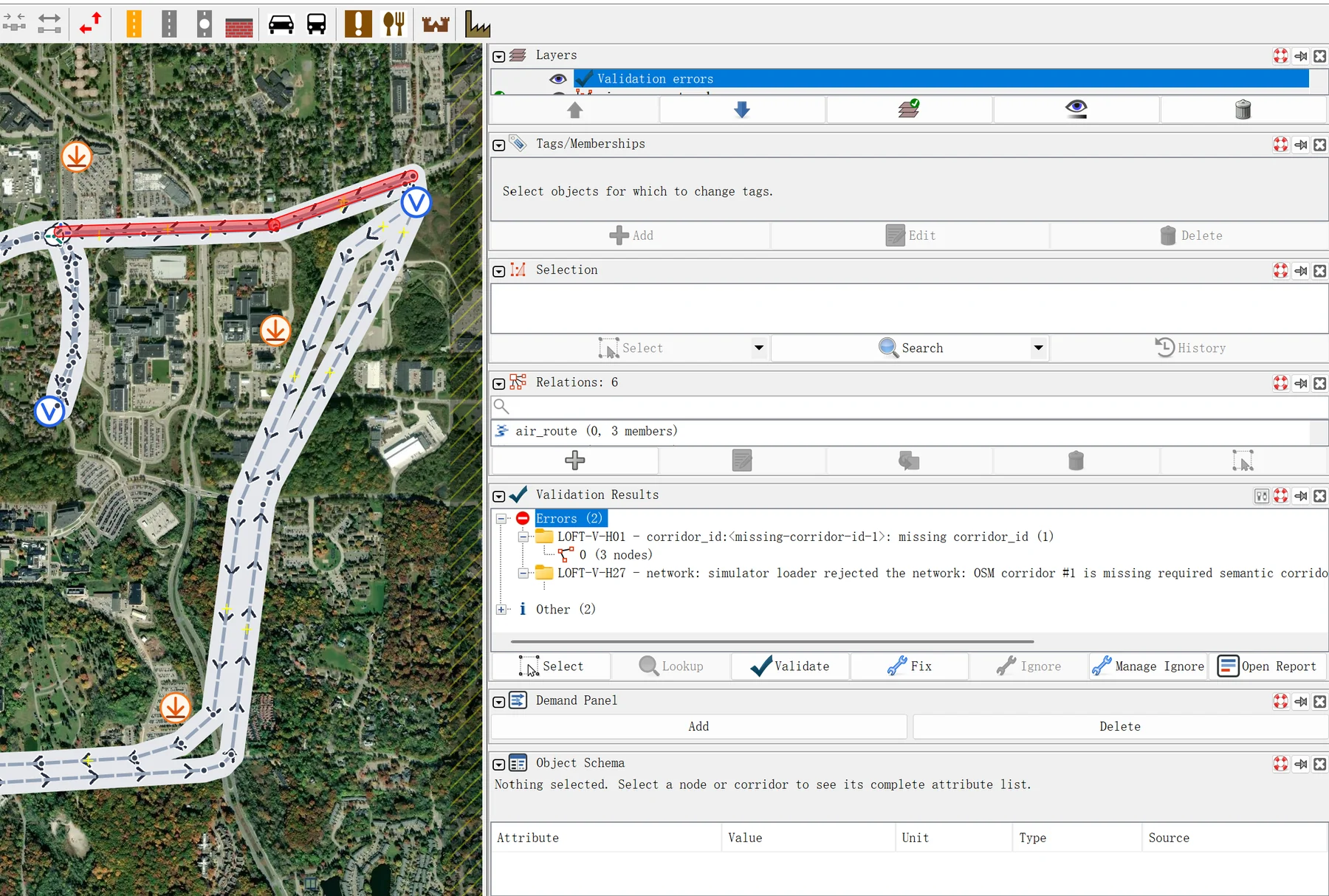
In the example below, one corridor has lost its corridor_id, and two errors
report it. LOFT-V-H01 names the corridor itself and carries the quick fix that
mints a new ID. LOFT-V-H27 is the simulator loader rejecting the network as a
whole, so it is project-level and has no object to select. Both come from the
one missing tag: apply the LOFT-V-H01 fix, validate again, and both errors
clear. Widen the side bar if the button row is cut off; it holds Select,
Lookup, Validate, Fix, Ignore, Manage Ignore and
Open Report.
One Run Covers the Whole Project
JOSM’s global validator normally checks only the active data layer. LOFT-Edit
rewires the visible Validate buttons it owns so they run the scenario-wide LOFT
validator instead. The simulator loads a whole scenario – network, CNS
infrastructure, demand and config – so one run validates all of it. That is
not a convenience. A demand flow whose origin names a node the network does
not carry is a defect in neither file, so no number of per-layer runs can find
it; only a scenario-wide run can (LOFT-V-H45).
You never need to run validation once per layer.
An incomplete project is reported, never passed over in silence: LOFT-V-H44
lists which scenario inputs are present and which are absent. An absent optional
input is a normal state – a project with no demand yet is a project being built
– so it is information. A project with no network at all is an error, because
there is nothing to validate.
Rules Only the JOSM Validator Checks
Validate runs the LOFT checks only. A few LOFT tag rules, kept in
josm/validator/loft_airspace.validator.mapcss, are checked only by JOSM’s
own validator (Shift+V by default, which also runs JOSM’s generic OSM
checks):
- a node tagged
airspace=yeswithoutnode_type(it silently loads as a waypoint); - a relation tagged
type=routeinstead oftype=air_route; - retired CNS site keys, such as
surveillance_modelor the unit-suffixedcoverage_radius_m; comm_level,nav_level,surv_levelorsurveillance_levelon a node or way, which the simulator never reads;- a CNS site or contingency landing site node that is part of a way.
JOSM’s own validator checks only the active layer, so run it once before
export with each project layer active in turn (airspace_network.osm, then
infrastructure.osm).