
Demand Panel
Demand is stored in config/demand_config.xml as one <flows> list. Use an
OD flow when LOFT-Sim should resolve a path between an origin and destination.
Use a route flow when traffic must follow one specific route relation exactly.
Add Flows
- Open Windows > Demand Panel if the panel is hidden.
- Click Add.
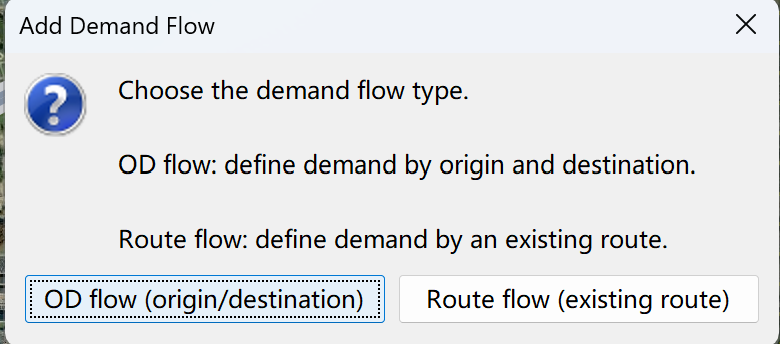
- Choose OD flow (origin/destination) or Route flow (existing route).
- Select the path, choose the arrival model and source, and enter the demand value. LOFT-Edit fills in the available IDs, supported choices, and common defaults from the current scenario.
- Click Save Demand.
- Repeat Add for each additional flow.
Route Flow
- Select Route flow (existing route).
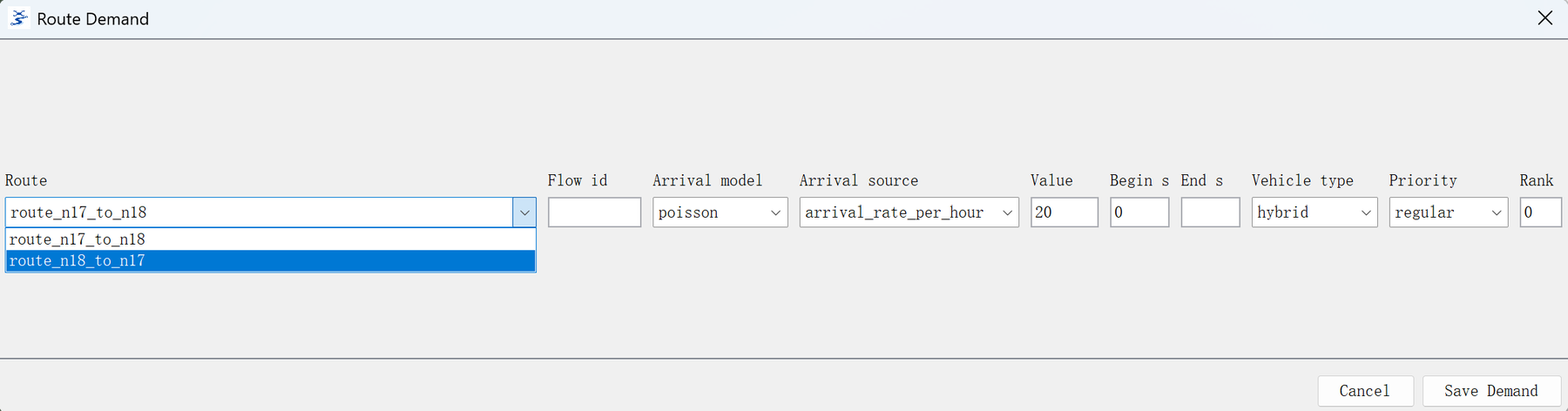
- The Route Demand dialog opens with one row. Select a route, choose the arrival model and source, and enter its value.
- Click Save Demand. To add another route flow, click Add again.
The route list and common values are filled automatically. Leave Flow ID blank to generate one, and change optional values only when the flow needs a specific override.
OD Flow
- Select OD flow (origin/destination).
- The Demand Matrix dialog opens. It lists every OD flow already saved,
one per row. When no OD flow is saved yet, it opens with one row filled
with defaults (the first two vertiports,
poisson, 20 flights per hour); edit that row for your first flow. - Click Add Row only for each further flow; the new row has the same
defaults. Select origin and destination vertiports. The dialog uses their
Vertiport IDs, stored as
node_id, and highlights the selected endpoints on the map. - Choose the arrival model and source, enter its value, and click Save Demand.
The Demand Matrix rows replace all saved OD flows when you click Save Demand. Remove Row deletes the last row (one row always stays), so removing a row and saving deletes that OD flow. Route flows are not affected.
The origin, destination, and common values are filled automatically from the current network. Change optional values only when the flow requires a specific override.
An OD flow does not create a route relation. LOFT-Sim resolves its path when it loads or runs the scenario.
Inspect, Change, or Remove Flows
Use the panel to inspect, highlight, change, or remove saved flows.
The Demand Panel intentionally has only Add and Delete buttons.
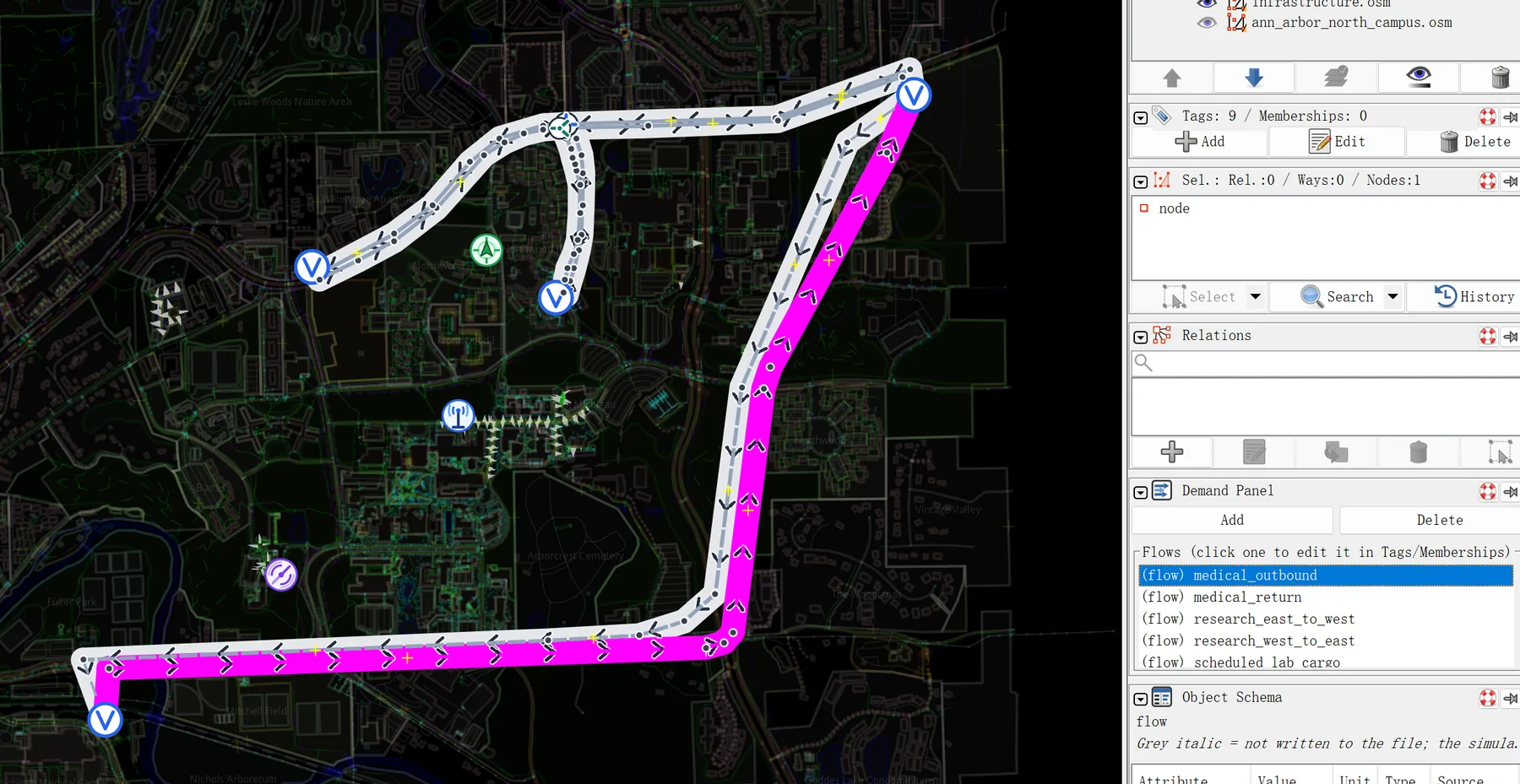
- Click a saved flow in the Demand Panel to select it and highlight its referenced route or OD endpoints.
- Its attributes appear in JOSM’s native Tags/Memberships panel.
- Double-click a value there to change it.
- LOFT-Edit validates the field, updates the in-memory mirror, and rewrites
config/demand_config.xml.
The selected flow is represented by a temporary in-memory mirror so JOSM can
use its normal tag editor. It is not an OSM map object and the mirror is never
saved into network/airspace_network.osm.
To remove a flow, select it in the Demand Panel, click Delete, and confirm with OK in the Delete Flow dialog.
Important Distinctions
- A route relation defines its identity with
route_id; a route flow refers to it with therouteattribute. - A blank Flow ID is generated automatically. The dialog also supplies common values so optional fields normally need no manual editing.
- Route and OD flows may coexist in one
<flows>list. - Demand Flow visualization maps explicit route flows to corridors. It does not guess the runtime path of OD flows.
- Do not represent the same intended traffic once as route flow and again as OD flow unless the duplication is intentional.