
Locate
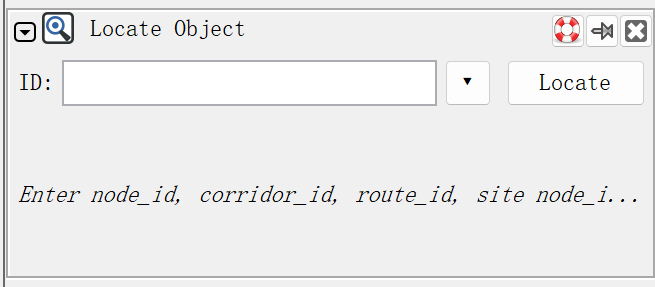
The Locate Object panel finds LOFT objects by their semantic IDs instead of
their internal OSM numbers. It can search the open network and infrastructure
layers for node_id, corridor_id, and route_id, and it can find flow_id
entries exposed by the Demand Panel.
Open the Locate Panel
The Locate shortcut is the magnifying-glass button on JOSM’s left toolbar.
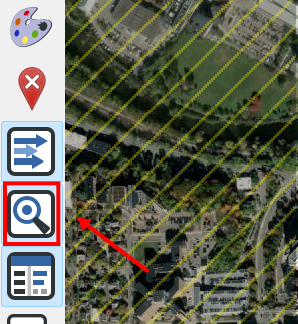
- Open Windows > Locate Object, or click the Locate shortcut on the left toolbar.
- Enter an ID in the ID field.
- Click Locate or press
Enter. - LOFT-Edit activates the matching layer, selects the object, and zooms the map to it.
The status line reports whether one object, multiple matching objects, or no object was found. The help button in the panel’s title bar (tooltip: Open this panel’s page on the documentation website) opens this page.
Browse Available IDs
Use the arrow beside the ID field when you do not know the exact identifier.
The menu is rebuilt from the currently open layers and groups IDs by object
type, including vertiports, controlled nodes, corridor classes, infrastructure
sites, routes, and demand flows. IDs use natural numeric order, so n2 appears
before n10.
Choose an entry from the menu to copy it into the field and locate it immediately. Long groups are divided into smaller labelled ranges without dropping any IDs.
Locate Demand Flows
Open Windows > Demand Panel before browsing or locating demand flows. The
Demand Panel creates the temporary flow mirror used by JOSM; selecting a
located flow then exposes its values in Tags/Memberships. The mirror is not
written to network/airspace_network.osm.
IDs the Panel Recognizes
| Object | Identifier |
|---|---|
| Airspace node or CNS site | node_id |
| Corridor or terminal link | corridor_id |
| Route relation | route_id |
| OD or route flow | flow_id |
If an ID is duplicated, the panel selects every match. Run Validation to identify duplicates and apply the supported re-minting quick fix.