
Runtime and Viewer
Running the Simulator
The standard entry point is:
loft-sim run
With no -c, this runs the flagship example/scenarios/sample_demo/config/simulation_config.xml.
python run_sim.py remains a compatibility wrapper for the same command.
The repository also includes a strategic 4D pre-flight example on the North Campus network:
loft-sim run -c example/scenarios/default/config/sim_config_preflight.xml --nogui
Replace --nogui with --visualization web (or --gui) to watch the same
scenario in the browser viewer. Headless mode is the reproducible way to
generate outputs; this scenario writes XML outputs to
example/scenarios/default/outputs/preflight/.
Every option of loft-sim run is listed under
loft-sim run options. Independent
random-seed replications, and the paper’s throughput benchmark, are described
in Batch Replication.
An external real-time controller starts and advances its own session through ACI; no special XML mode is required. See the ACI Reference.
Execution Modes
| Mode | How to request it | Behavior |
|---|---|---|
| Web UI mode | runtime.gui=true (the default), or --visualization web / --gui |
Opens the browser-based simulation viewer (default GUI) |
| Headless mode | runtime.gui=false, or --visualization none / --nogui |
Runs without a visualization UI |
| Batch replication | loft-sim batch (Batch Replication) |
Runs independent random seeds in parallel worker processes |
When a UI is enabled by the config and no backend is specified, the browser
web viewer is the default visualization backend. The browser viewer and
headless runs load the same simulation config, network, demand file, random
seed, and optional additional_file, so the route geometry and vehicle
dynamics are driven by the same simulation core. --visualization vispy still
opens the legacy Qt/VisPy desktop viewer, which needs the optional viz extra
(python -m pip install -e ".[viz]"); this site documents only the browser
viewer.
Headless Progress
Headless runs print a progress bar by default so long fast-time runs do not look
stalled. Each line reads like Progress: [####------] 5.6%, and an identical
progress line is never printed twice. When the run length is a multiple of the
interval, the last Progress line shows 100.0% and the Complete line
repeats it. The run ends with either Complete or Stopped, then
Generated output files: with the configured outputs this run actually wrote.
By default a line is due every 100 simulated seconds and every 1000 steps;
--progress-interval-s and --progress-interval-steps change the two
intervals. --no-progress disables periodic progress output: the starting
Progress: ... 0.0% line and the final Complete or Stopped line are still
printed. See loft-sim run options.
Shared Simulation Behavior
The visualization backend changes only the presentation layer. Web-viewer
and headless runs use the neutral runtime session created by
loft.runtime.runner. ACI owns stepping only when an external Python script
starts and advances a session through aci.start(...) and
aci.simulationStep(). A fixed configuration therefore produces the same
dynamics, trajectory geometry, departure schedule, and vehicle states at the same
simulation clock time across the standard backends. Viewer speed controls
adjust wall-clock playback pacing; they do not alter the underlying dynamics.
Web Viewer HUD
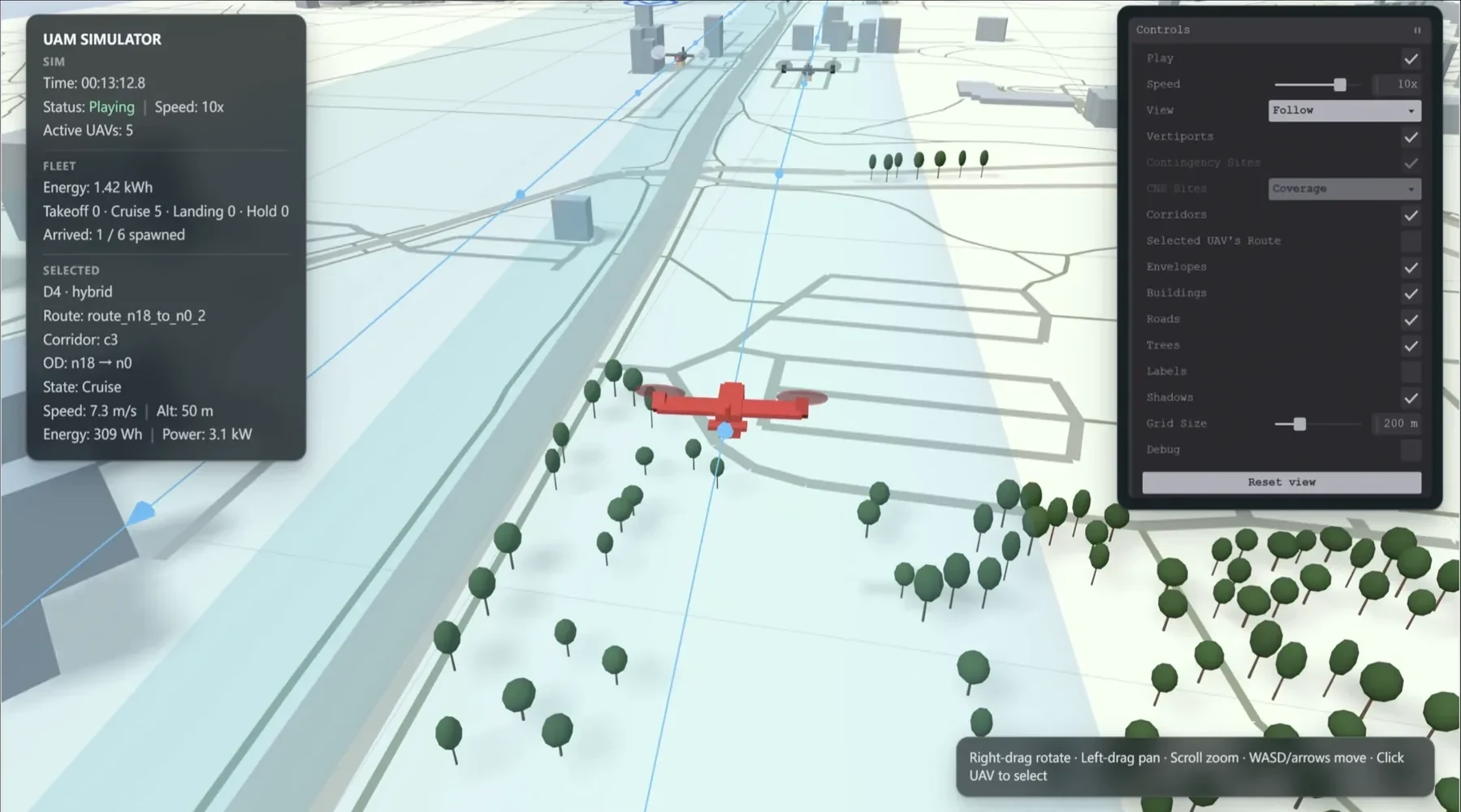
The web viewer serves the static browser interface and displays live simulator state. The panel at the top left (the HUD) has three sections, in this order:
| Section | Contents |
|---|---|
| Sim | Simulation time from live telemetry, play status, playback speed, and the number of active UAVs |
| Fleet | Fleet energy, a flight-state breakdown (takeoff, cruise, landing, hold), and arrived / spawned counters (matching the summary output definitions) |
| Selected | ID and vehicle type, route, corridor, origin → destination, flight state, speed, altitude, accumulated energy, and power draw |
The web speed control updates playback pacing in the Python runtime. For
example, 100x targets one hundred simulator seconds per wall
second, subject to local CPU and rendering limits.
The browser page defaults to http://127.0.0.1:8888/. If the port is already
occupied, the runtime searches nearby ports and opens the actual local URL.
--webui-host, --webui-port and --no-browser change the address, the port
and whether a browser tab opens.
The viewer is not a public control interface; ACI is the only supported
external real-time control surface.
Web Viewer Controls
The Controls panel at the top right holds:
| Control | Action |
|---|---|
| Play | Pause or resume the live simulation through telemetry |
| Speed | Set the backend playback multiplier: 1x, 2x, 5x, 10x or 100x |
| View | Switch between a free camera (Free) and following the selected vehicle (Follow) |
| Layer toggles | Show or hide Vertiports, Contingency Sites, CNS Sites (Off, Intensity or Coverage), Corridors, Selected UAV’s Route, Envelopes, Buildings, Roads, Trees and Labels |
| Shadows, Grid Size, Debug | Display settings: shadows, the spacing of the ground grid, and a debug overlay |
| Reset view | Fly the camera back to its initial framing |
Click a vehicle to select it, or click it again to clear the selection; the HUD’s Selected section follows the selection. Right-drag rotates the camera, left-drag pans, the scroll wheel zooms, and in the Free view WASD or the arrow keys move it.
Network Geometry In The Viewer
The viewer draws the same corridor path_points used by the simulation. With
an empty input.additional_file, corridors are shown as point-to-point line
segments through the OSM nodes as drawn, in XYZ. Setting input.additional_file
to example/scenarios/default/config/additional.xml applies the example
catmull_rom pass. Supported method names are exactly catmull_rom,
bspline, nurbs, and chaikin; LOFT-Edit’s smoothing preview uses the
same vocabulary and geometry semantics.
Web Viewer Files
The browser viewer is a static web application (TypeScript, Vite and
three.js) whose source is the
ui/ folder
of the LOFT-Sim repository. The Python runtime serves its built files together
with the scene (/configs) and the telemetry websocket (/ws). The build is
not committed; a web-viewer run uses the first of these that holds one:
- The folder named by the
LOFT_UI_DIRenvironment variable, used as it is. - A managed install of the pinned version:
loft/web_ui/inside the package (the usual editable install), or the per-user cache when the package folder is not writable (%LOCALAPPDATA%\loft-sim\cache\web_ui\<version>on Windows,~/Library/Caches/loft-sim/web_ui/<version>on macOS,~/.cache/loft-sim/web_ui/<version>on Linux). An install of another version is ignored and replaced. - Otherwise the release pinned in
loft/telemetry/web_ui_pin.pyis downloaded once, checked against its pinned SHA-256 and extracted into the managed install.
| Command | Effect |
|---|---|
loft-sim ui fetch |
Download the pinned viewer now, for example before working offline (--force downloads again, --version fetches another release) |
loft-sim ui status |
Print the pinned version and the installed version and location |
loft-sim ui clear |
Remove the managed install |
loft-sim ui build |
Build the viewer from ui/ of a source checkout (below) |
The download comes from a GitHub release (currently in the
zihaooo/LOFT-Sim-UI repository, where the viewer was first published), so a
machine behind a firewall needs access to github.com; loft-sim ui fetch
prints the full URL. Without network access, run loft-sim ui fetch on a
connected machine and copy the installed folder across, or extract the release
archive anywhere and point LOFT_UI_DIR at the folder that contains
index.html.
Building the viewer from source
In a source checkout (an editable install of the repository) with Node.js
20.19+ or 22.12+ (Node 22 LTS recommended), loft-sim ui build runs npm ci
and npm run build in ui/ and prints the resulting ui/dist folder:
loft-sim ui build             # build ui/ into ui/dist
loft-sim ui build --install   # build, then serve it in place of the pinned release
loft-sim ui fetch             # return to the pinned release
Without --install, point LOFT_UI_DIR at the build for the runs that
should use it:
export LOFT_UI_DIR="$PWD/ui/dist"     # PowerShell: $env:LOFT_UI_DIR = "$PWD\ui\dist"
loft-sim run
LOFT_UI_DIR takes precedence over any managed install and is not
version-checked; unset it to return to the pinned viewer. A build installed
with --install appears in loft-sim ui status with its version and source
commit, and it is replaced when the pin changes. --source DIR builds the
given ui/ folder instead of this checkout’s (pass the ui/ folder itself,
for example --source ../other-checkout/ui), --skip-npm-ci skips npm ci
and reuses the existing ui/node_modules, and the NPM environment variable
names the npm executable when it is not on PATH.
Working on the viewer itself (the development server, tests and the release
procedure) is described in
ui/README.md.